


Adding your resume to LinkedIn sounds like one task, but it’s actually three different things, and most people do the wrong one. You can attach a resume to a specific job application, showcase it on your profile’s Featured section, or store it for quick Easy Apply use. Each serves a different purpose, and one of them can quietly work against you.
This guide walks through every method step by step on how to add resume to LinkedIn in the current 2026 interface, explains when each makes sense, and covers the privacy and formatting details that trip people up.
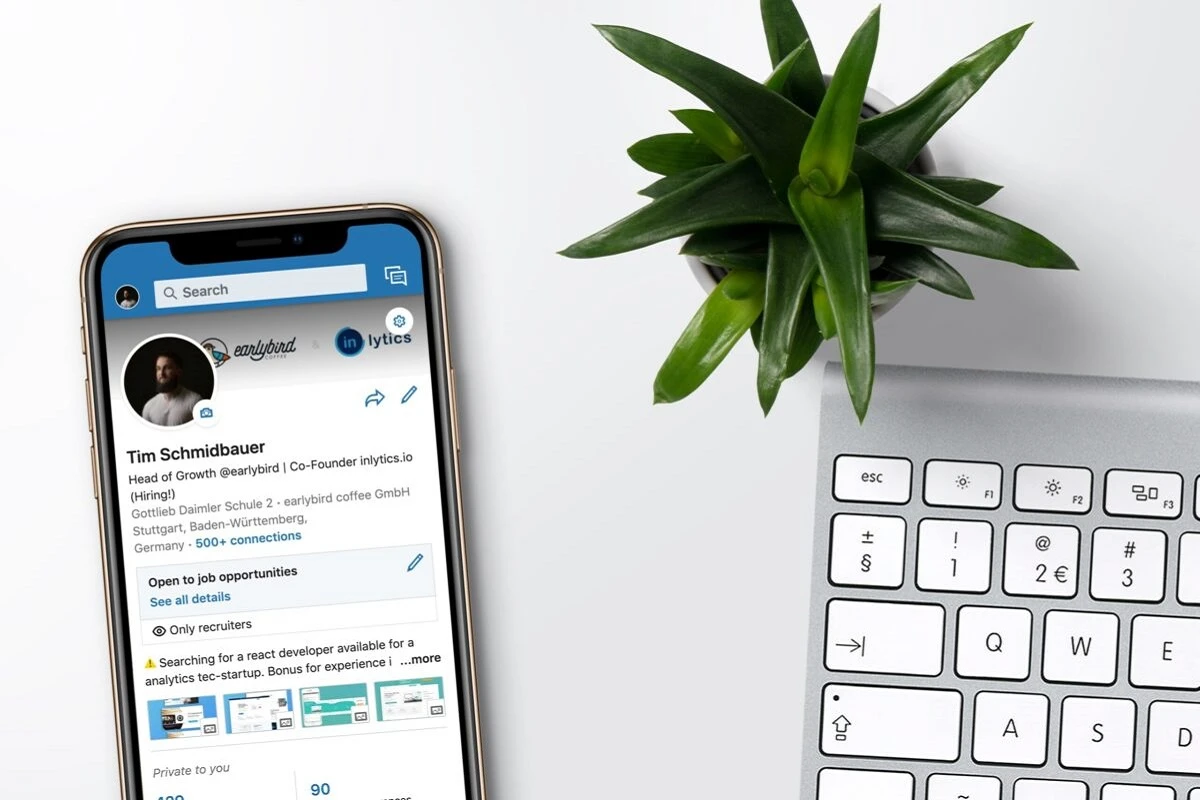
The Three Ways to Add Resume to LinkedIn
Before clicking anything, know which outcome you want. Understanding how to add resume to LinkedIn comes down to three distinct methods, each serving a different purpose:
1. Attach to a Job Application
Upload your resume when you apply to a specific role through LinkedIn (including Easy Apply). This is the most common and most useful.
2. Store for Easy Apply
Save a resume in LinkedIn’s settings so it auto-fills future applications, saving time across many jobs.
3. Showcase in Your Profile (Featured Section)
Display your resume publicly so anyone viewing your profile can download it.
The first two help you apply efficiently. The third is optional and comes with trade-offs we’ll cover below.
Why the Way to Add Your Resume to LinkedIn Matters
It’s tempting to treat “add my resume to LinkedIn” as a single checkbox, but the method you choose changes who sees the document and what it does for your search. Understanding how to add resume to LinkedIn the right way means knowing the impact of each option:
- Attaching a resume to a job application puts a tailored file directly in front of one employer’s hiring system.
- Saving a resume for Easy Apply makes applications faster, but risks sending the same file everywhere without tailoring.
- Posting a resume to your public profile broadcasts it to everyone — recruiters, peers, and your current manager alike.
Choosing the wrong method has real consequences. People who post an outdated public resume can undercut an otherwise strong profile. People who only ever rely on a single saved resume for Easy Apply miss the chance to tailor to each role. Knowing the difference up front lets you use LinkedIn deliberately instead of accidentally.
The rest of this guide separates the three methods clearly so you can pick the one that fits your situation and avoid the privacy and staleness traps that come with the public option.
How to Add Your Resume to a LinkedIn Job Application
This is the method you’ll use most. Knowing how to add resume to LinkedIn for job applications ensures your tailored file lands directly in the employer’s hiring system. In the current interface:
1. Find a job and click Easy Apply (jobs with a standard Apply button send you to the company site instead).
2. Work through the application fields until you reach the resume step.
3. Click Upload resume and select your file (PDF or Word, up to the size limit LinkedIn specifies).
4. Review the parsed details, then submit. LinkedIn saves recently used resumes for next time.
Expert Tip
Upload a tailored resume for each role rather than one generic file. Matching the posting’s keywords still matters, because employers often run LinkedIn applications through their own applicant tracking system (ATS).
How to Save a Resume for Easy Apply
If you apply to many roles, storing a default resume speeds things up. The way you handle how to add resume to LinkedIn directly shapes recruiter impressions, application speed, and even privacy risks.
1. Go to your Jobs settings (Me → Settings & Privacy → Data Privacy → Job Application settings, in the current layout).
2. Under Job Application settings, upload the resume you want saved.
3. LinkedIn keeps your recent uploads so you can pick the right one per application.
4. Manage this list periodically. Delete outdated versions so you never accidentally send an old resume.
How to Add Resume to LinkedIn Profile (Featured Section)
You can display your resume publicly using the Featured section. The way you approach adding your resume to LinkedIn here is about visibility and positioning so that recruiters, colleagues, and even your current employer can access it instantly.
1. Go to your profile and locate the Featured section (add it from “Add profile section” → Recommended → Add featured if it isn’t visible yet).
2. Click the plus icon in Featured and choose Add media.
3. Upload your resume file and add a title and description.
4. Save. It now appears on your profile for viewers to open or download.
This method highlights your resume as a showcase piece, but whether you should use it depends on your privacy comfort level and how current your resume is — see the next section for guidance.
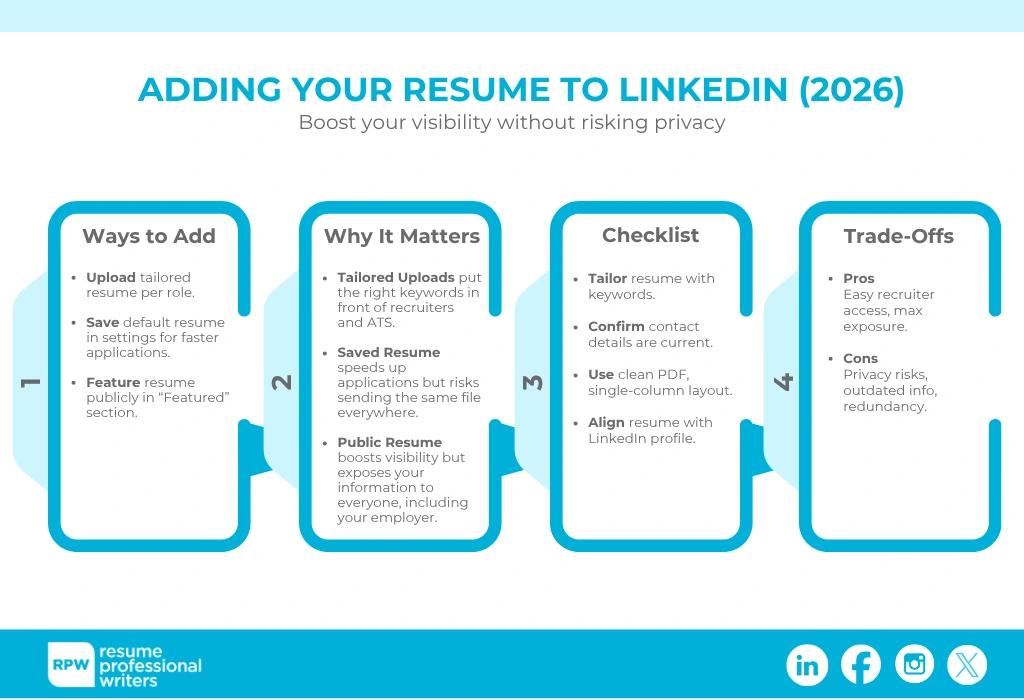
Should You Put Your Resume on Your Profile? The Trade-Offs
Displaying a resume publicly is convenient, but think it through first.
Reasons To Do It
- Makes it easy for recruiters viewing your profile to grab a full resume immediately.
- Useful if you’re openly job searching and want maximum exposure.
Reasons To Be Cautious
- Privacy: your resume often contains a phone number, email, and full work history visible to anyone, including your current employer.
- Staleness: a public resume that’s months out of date undercuts a polished profile.
- Redundancy: a complete LinkedIn profile already functions as a living resume, so the upload may add little.
A common middle path: keep your profile complete and current and attach a tailored resume only when you apply — rather than posting one publicly. If you do feature a resume, set it so it doesn’t include sensitive contact details you’d rather not broadcast.
Resume vs. LinkedIn Profile: Keep Them Aligned
Your resume and profile should tell the same story without being identical. Recruiters often check both, and contradictions raise questions.
- Match job titles, employers, and dates exactly across both.
- Use your profile to expand — projects, media, recommendations — and your resume to stay concise and tailored.
- Echo the same core skills so sector searches surface you consistently.
- Keep your headline and summary pointed at the roles you want, the same direction your resume’s summary takes.
For more on referencing your profile from your resume, see our guide on how to put LinkedIn on your resume, and for setting your profile’s sector correctly, our guide on the “Industry” field on LinkedIn.
Preparing Your Resume for LinkedIn

Writing an effective resume for LinkedIn is crucial to attract potential employers, network with professionals, and showcase your skills and experience. Here are some tips to help you create a compelling LinkedIn resume:
1. Tailor Your Resume Content
Make sure your resume mirrors the roles you’re targeting. Pull in 2–3 keywords from job descriptions so recruiters and ATS systems see immediate alignment.
2. Write a Concise Professional Summary
Open with a short, plain‑prose resume summary that spells out your professional identity, core skills, proof of achievements, and career focus. This acts as the bridge between your resume and LinkedIn profile.
3. Include Relevant Work Experience
List your current and past job positions, including the company name, location, and dates. For your responsibilities and achievements in each role, you can format them in bulleted lists. Nonetheless, only focus on quantifiable accomplishments, for which you should use action verbs.
4. Highlight Achievements
Emphasize your accomplishments, awards, and recognition to demonstrate your impact in each role. Use specific metrics and data as much as possible in order to showcase your contributions.
4. Showcase Skills
List 8–15 key skills in a dedicated section. Align them with LinkedIn’s Skills section and consider endorsements or recommendations to validate them.
6. Add Projects and Publications
Include notable projects or published work. These can be mirrored in LinkedIn’s Projects and Publications sections for added credibility.
A Quick Pre-Upload Checklist
Before you attach a resume to any LinkedIn application, run through this short list. It takes two minutes and prevents the most common mistakes, especially if you’re figuring out how to add resume to LinkedIn the right way:
- Confirm the resume is tailored to the specific role, with the posting’s key terms reflected in your skills and summary.
- Check that your contact details are current and that you’re comfortable sharing them through this channel.
- Make sure the file is a clean, single-column PDF with a professional filename.
- Verify that the resume and your LinkedIn profile agree on titles, employers, and dates.
- If you’re posting publicly to Featured, double-check it’s your latest version and free of anything you’d rather your current employer not see.
Formatting Tips Before You Upload
- Use PDF unless the application specifically asks for Word — PDF preserves your layout across devices.
- Keep the layout single-column and ATS-friendly; many LinkedIn applications feed an external ATS that struggles with tables and graphics.
- Name the file clearly, e.g. FirstName-LastName-Resume.pdf, so it reads professionally on the recruiter’s end.
- Double-check the contact details on any resume you make public.
Updating and Managing Your Resume on LinkedIn
Updating and managing your uploaded resume on LinkedIn is essential to ensure that your profile accurately reflects your qualifications and experiences. If you’re wondering how to add resume to LinkedIn and keep it current, here are the steps to update and manage your uploaded resume:
Updating Your Uploaded Resume:
- Login to Your LinkedIn Account: Go to LinkedIn’s website and log in to your account using your email and password.
- Access Your LinkedIn Profile: Click on your profile picture or your name in the top right corner of the LinkedIn homepage to access your LinkedIn profile.
- Open the “Featured” Section: Scroll down on your LinkedIn profile until you reach the “Featured” section. This is where your uploaded resume is located.
- Edit or Replace Your Resume: To update your resume, click the pencil icon (Edit) next to the resume you want to modify. This will allow you to edit or replace the existing file.
- Make the Necessary Changes: A file browser will open, allowing you to select a new version of your resume. Choose the updated resume file from your computer. You can also update the description or title if needed.
- Save Your Changes: After making the necessary updates, click the “Save” button to save the changes to your LinkedIn profile.
Managing Your Uploaded Resume:
- Access Your LinkedIn Profile: Log in to your LinkedIn account and click on your profile picture or your name to access your profile.
- View the “Featured” Section: Scroll down on your profile to the “Featured” section to see the resumes you’ve uploaded.
- Rearrange or Remove Resumes: To rearrange the order of your featured items or remove a resume, click the pencil icon (Edit) next to the resume you want to manage. You can then drag and drop items to change their order. To remove a resume, click the trash can icon.
- Save Your Changes: After rearranging or removing resumes, click the “Save” button to save your changes.
- Add More Documents: If you have additional documents or files you want to feature on your profile, you can click the “Add Media” button within the “Featured” section. You can upload presentations, articles, links to websites, and other documents to showcase your work.
- Check Your Profile: After making any updates or changes, visit your LinkedIn profile to ensure that the modifications have been successfully applied and that your profile accurately reflects your qualifications.
Troubleshooting Common Upload Problems
A few issues come up often when adding a resume to LinkedIn. Most are quick fixes.
- Upload fails or file is rejected: Confirm the file is a supported format (PDF or Word) and within LinkedIn’s size limit. Re-export from your word processor if the file is corrupted.
- Formatting looks broken after upload: This usually means the original had complex tables, columns, or graphics. Simplify to a single-column layout and re-upload as a PDF.
- Old resume keeps appearing: LinkedIn stores recent uploads. Delete outdated versions in your job application settings so you don’t send the wrong file.
- Featured upload not visible: Make sure the Featured section is added to your profile and that your visibility settings allow others to see it.
- Parsed details are wrong on an application: LinkedIn sometimes mis-reads a resume’s text. Review the auto-filled fields before submitting and correct anything the parser got wrong — another reason to keep your layout clean and ATS-friendly.
How Recruiters Use Resumes Uploaded Through LinkedIn
It helps to know what happens on the other side after you hit submit. When you apply through LinkedIn Easy Apply, your resume and profile data are passed to the employer — and in many cases, straight into that company’s own applicant tracking system. The hiring team rarely reviews LinkedIn applications inside LinkedIn itself; they export them into the same ATS they use for every other channel.
That has two practical implications. First, the resume you attach still needs to be ATS-friendly: single-column, standard headings, no critical text trapped in tables or images. A beautifully designed resume that breaks in the parser can cost you the screen. Second, keyword matching still matters. The employer’s ATS scores your resume against the job description, so tailoring the file to each posting — not relying on one generic upload — measurably improves your odds.
In short, “applying on LinkedIn” is not a shortcut around ATS screening. It’s often the front door to it. Treat every resume you upload with the same care you’d give a resume emailed directly to a recruiter. If you want a refresher on the formatting rules that keep your file readable, our guide on what an ATS resume is covers them in detail.

Get Your LinkedIn Profile and Resume Working Together
Adding a resume to LinkedIn is the easy part — the harder, higher-value work is making sure your profile and resume reinforce each other and speak the language recruiters search. When both point in the same direction, you show up more often and convert more of those views into conversations.
Resume Professional Writers has helped more than 100,000 professionals align their resumes and LinkedIn profiles for modern hiring. Explore our LinkedIn profile writing service to have your profile optimized end to end.
Frequently Asked Questions
Does adding my resume to LinkedIn replace my profile?
No. Your profile is the primary asset recruiters browse. A resume upload supplements it — most useful when applying to specific jobs rather than as a public profile attachment.
Can my current employer see if I upload my resume?
If you add it to your public Featured section, anyone viewing your profile, including your employer, can see it. Resumes attached to individual job applications are not shown publicly.
What file format should I use to upload my resume to LinkedIn?
PDF is best in most cases because it preserves formatting. Use Word only if a specific application requests it. Keep the layout ATS-friendly either way.
How do I update or remove a resume from LinkedIn?
For the Featured section, edit or delete the item from your profile. For saved application resumes, manage them in your job application settings and delete outdated versions.
Should I upload a different resume for each job?
Yes, when practical. Tailoring your resume to each posting’s keywords improves your match, since employers frequently process LinkedIn applications through their own ATS.