

Unsure how to add promotion on LinkedIn without sounding boastful? You’re not alone. Many professionals hesitate to update their profiles after a career milestone, worried about striking the right balance between confidence and humility. Yet skipping this step can mean missed opportunities. Recruiters and collaborators need to see your latest achievements and leadership growth.
This guide shows you exactly how to add promotion on LinkedIn while keeping your brand consistent and your profile visible. Whether you’re an executive, manager, mid-level, or entry-level professional, learn how to showcase career advancement with confidence and impact.

Understanding Why Adding Promotion on LinkedIn Matters
Adding a promotion to LinkedIn is more than a profile update; it is a powerful signal of career growth, credibility, and professional momentum. Recruiters and business leaders rely on LinkedIn’s internal search algorithms to identify professionals who show upward mobility. A clear record of advancement reinforces trust and positions a professional as someone who is committed and growing within their field.
Here’s why adding a promotion makes a difference:
- Boosts Visibility: LinkedIn data shows that members who refresh their profiles regularly attract more views and connection requests.
- Highlights Achievement: Adding a promotion showcases new leadership levels, certifications, achievements, and responsibilities, all of which increase the likelihood of you being discovered in recruiter filters or AI-generated candidate recommendations.
- Strengthens employer branding: From an employer branding perspective, showcasing promotions reflects a company’s commitment to employee development. It communicates recognition of talent, career longevity, and internal progression—qualities that resonate with both current teams and future hires.
- Prevents stagnation: A profile without updated milestones can appear dormant, reducing search visibility and engagement potential.
Mastering how to add promotion on LinkedIn ensures your career story stays current, compelling, and competitive, helping you stand out in recruiter searches and professional networks.
Step-by-Step Guide on How to Add Promotion on LinkedIn
Properly showcasing a promotion requires more than clicking “Add Position.” Job seekers and professionals benefit from following a structured, clear process to maximize engagement and accurately reflect their evolving credentials. The following steps ensure that every promotion added aligns with best practices for LinkedIn optimization in 2026.
1. Navigate to the Experience Section
From the LinkedIn homepage, click the profile icon and select “View Profile.” Scroll down to the “Experience” section, which lists all prior and current roles. This section functions as a digital resume and should be prioritized for accuracy.
2. Select Current Position
Locate the most recent role in the same organization. Click the pencil (edit) icon to modify details. Choose the option that allows adding a new position within the same company to accurately represent a transition rather than replacing the previous one.
3. Input Updated Job Title
Enter the new title granted through the promotion, ensuring the title precisely matches how it appears within the organization. Inconsistent naming (such as abbreviations or omitted hierarchical levels) can reduce keyword relevance in recruiter searches.
4. Adjust Dates and Details
Update the “Start Date” for the new position while retaining the previous role’s dates. Ensure continuity between roles to prevent employment gap flags or resume inconsistencies that automated systems might detect.
5. Craft a Strong Description
Integrate measurable results. Highlight leadership growth, project outcomes, expanded responsibilities, and keywords relevant to industry searches.
6. Use the ‘Notify Network’ Feature Wisely
Toggle the setting depending on the intended visibility. Professionals may choose to disable notifications to finalize wording, then re-enable it when ready for announcement.
7. Add Rich Media
Include supporting visuals such as project presentations, certifications, press releases, or performance awards when appropriate. These elements reinforce credibility and increase engagement with profile visitors.
8. Align Career Summary
Revise the “About” section to reflect new expertise and leadership growth. The summary functions as a persuasive elevator pitch and should evolve consistently with recent achievements.
9. Review Skill Alignments
Endorsements and skills should complement the updated role. Skills related to leadership, project management, or technical expertise relevant to the new position should appear prominently.
10. Finalize and Verify Consistency
Once completed, preview the entire profile to ensure narrative flow across employment sections, headline, and recommendations. Consistency builds credibility and strengthens keyword indexing.
This process ensures LinkedIn remains an accurate reflection of evolving professional milestones, which directly influences visibility in search results and increases engagement within professional networks.

Optimizing a Promotion for LinkedIn’s Algorithm
Knowing how to add promotion on LinkedIn isn’t just about accuracy; it’s about strategy. LinkedIn’s search and content algorithms prioritize profiles that show consistent activity, career progression, and relevant skills. By structuring your promotion update with the right keywords, you increase your chances of being discovered in recruiter searches and AI-driven recommendations.
Key optimization tactics include:
- Use role-based titles: Incorporate specific job titles recognized in the U.S. market, such as Senior Project Manager, Clinical Director, or Finance Lead. These align with how hiring systems categorize functions.
- Add certifications and technical keywords: Industry-specific terms boost compatibility with LinkedIn Recruiter filters, making your profile more searchable.
- Write a keyword-rich headline: Go beyond a simple title update; you can include both your new role and expertise. For example, “Marketing Director | Data-Driven Growth Strategist | Brand Leadership in SaaS.” The use of separators and descriptive nouns amplifies keyword density while keeping it readable.
- Leverage engagement metrics. Announce your promotion with gratitude or career insights. Authentic posts often spark comments and reactions, which LinkedIn’s algorithm rewards with higher visibility.
- Maintain consistent updates: After posting your promotion, share content tied to new responsibilities, leadership lessons, or industry trends. Posting every few weeks keeps your profile active in algorithmic rankings.
A promotion announcement optimized with structured keywords, professional tone, and engagement-driving language ensures that LinkedIn not only records the milestone but also amplifies it to attract future growth opportunities.
Best Practices for Writing the Promotion Description
The job description accompanying the newly promoted role carries significant weight. It communicates not only responsibilities but also personal achievements and leadership qualities that endorse continued professional advancement. Writing this section thoughtfully ensures it performs well across both human readers and LinkedIn’s machine-learning indexing system.
Here’s how to craft a standout promotion description:
Start with Core Achievements
Open with 2–3 lines illustrating measurable accomplishments that validate the promotion. Metrics such as revenue growth, process improvement percentages, or team size reinforce data-driven credibility.
Example: “Elevation of quarterly revenue by 28% through targeted SaaS campaigns, while expanding the client portfolio by 15 accounts in under six months.”
Use Direct, Industry-Specific Nouns
Instead of relying solely on action verbs, emphasize nouns that reflect authority, process, and expertise. Industry-specific terms such as orchestration, direction, optimization, or implementation highlight the scope of your responsibilities and reinforce credibility. Pairing these nouns with measurable outcomes creates a profile description that resonates with both recruiters and LinkedIn’s algorithm.
Example: “Leadership of a 20-person cross-functional team, orchestration of enterprise-level cloud migration, and optimization of Agile workflows resulting in a 25% reduction in delivery timelines.”
Maintain Parallel Structure
List bullet points using consistent noun forms describe achievements and responsibilities. This approach creates uniformity, improves readability, and aligns with recruiter-friendly conventions.
Example:
- Elevation of revenue by 28% through SaaS campaign orchestration
- Implementation of process improvements, resulting in 22% faster project delivery
- Leadership direction of a 15-member cross-functional team
- Facilitation of mentorship programs supporting the advancement of junior analysts
Integrate Leadership and Collaboration
Highlight cross-functional influence and mentoring experiences. These indicate readiness for multi-level roles, a factor appealing to executive recruiters and large organizations.
Example: “Supervision of five junior analysts, three of whom advanced into senior roles within 18 months.”
Incorporate Industry Keywords
Synchronize phrasing with the vocabulary recruiters use. For technology roles, include “Agile,” “cloud integration,” or “data governance.” For healthcare, terms like “clinical compliance,” “patient engagement,” and “EHR optimization” strengthen search match relevance.
Examples:
“Optimization of Agile workflows and implementation of cloud integration strategies for scalable data governance.”
“Improvement of patient engagement scores by 15% through EHR optimization and clinical compliance initiatives.”
Showcase Career Progression
When promotion descriptions link organically to previous positions, they illustrate transferable growth. Demonstrating progression from contributor to leader enhances trustworthiness.
Example: “Advancement from Project Coordinator to Senior Project Manager, evolving from task execution to strategic leadership of multimillion-dollar initiatives.”
Conciseness remains key. Most recruiters scan LinkedIn profiles for 6–10 seconds per section. Structured bullet points improve skimmability while making achievements stand out on mobile devices and desktop screens alike.
How to Announce a Promotion on the LinkedIn Feed
Once a promotion is added internally, write a public post to share the accomplishment with your network. Keep the focus on gratitude, growth, and impact rather than self-promotion. A thoughtful announcement strengthens personal branding, encourages engagement, and expands connections to future opportunities.
- Tone: Express appreciation for mentors, teams, and organizational support while subtly highlighting your expertise.
- Length: Aim for 1,000–1,500 characters to maximize visibility in LinkedIn’s feed algorithm.
- Format: Pair your post with a relevant image or short video for higher engagement than plain text alone.
Here are key tips to make your announcement truly powerful:
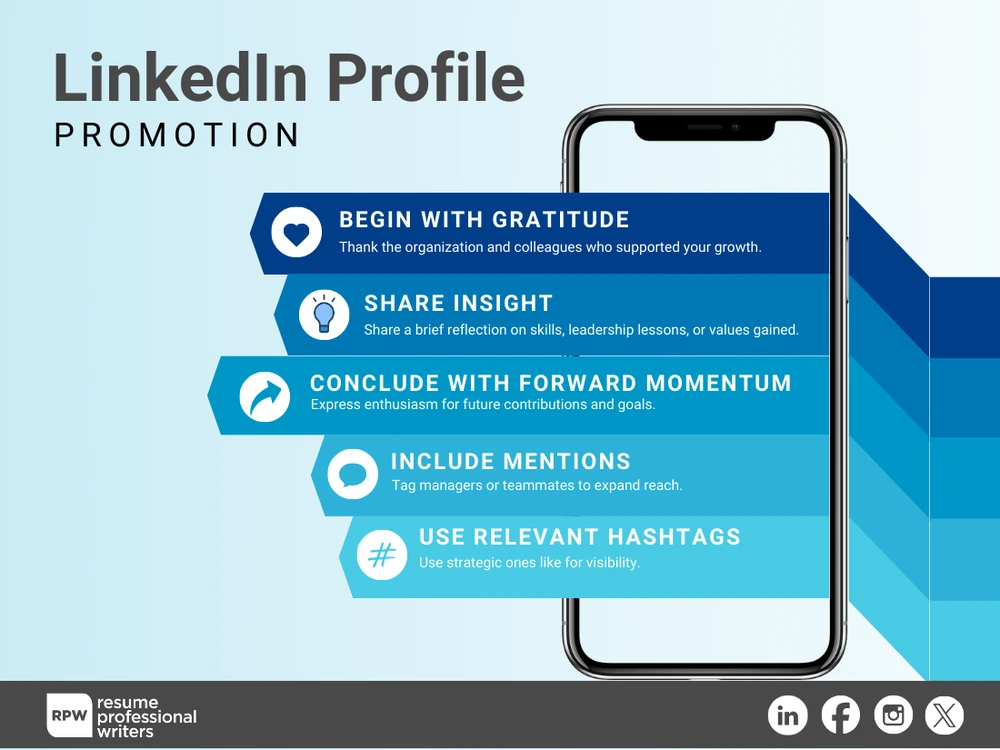
A post structured around values and contribution often garners authentic interaction, reinforcing a positive professional identity while building broader engagement.
Maintaining Consistency Between Resume and LinkedIn
Consistency between a LinkedIn promotion entry and one’s resume is essential for strengthening trust during recruitment processes. Discrepancies in title dates, job functions, or wording can trigger credibility issues when employers cross-reference professional documents. Recruiters frequently compare LinkedIn profiles with submitted resumes to confirm alignment, particularly for senior-level or federally governed roles.
Here’s how to keep your resume and LinkedIn in sync:
- Mirror the essentials: Titles, employment dates, and hierarchical or career transitions should match exactly. This reduces conflicting data across online databases used by automated background verification systems.
- Adapt the tone: Use concise, results-driven phrasing on resumes, while LinkedIn allows more narrative and context.
- Update regularly: Revisit both documents annually—or after major achievements—to reflect evolving goals.
A well-managed LinkedIn profile doesn’t just complement your resume—it amplifies it. Together, they present a unified brand that highlights expertise, career progression, and value-driven results. By mastering how to add promotion on LinkedIn while maintaining consistency, you’ll build trust, boost visibility, and position yourself for future opportunities.
Enhancing Employer Trust Through Profile Authenticity
When it comes to how to add promotion on LinkedIn, authenticity remains the cornerstone of professional credibility online. Truthful updates, aligned endorsements, and intentional engagement with industry content signal transparency that resonates with employers, recruiters, and stakeholders. In fact, LinkedIn’s AI and human moderation systems are increasingly adept at spotting inflated or inconsistent activity, making genuine updates far more valuable than over-optimized claims.
Here’s how to maintain profile authenticity and build employer trust:
- Add Visual Proof: Incorporating photographic evidence, certificates, and project media attachments further legitimizes promotion updates. Professionals in sectors such as healthcare, engineering, and education especially benefit from visual showcases that validate skill mastery or regulatory compliance. Used wisely, these elements transform LinkedIn into a living portfolio, allowing talent to be evaluated holistically rather than through static job titles.
- Align Endorsements with Career Growth: Endorsements should also reflect the competencies essential to the promoted role. For instance, managers moving into a director position may need new endorsements covering “strategic planning,” “budget management,” and “change leadership.” This natural evolution signals authentic progression to network observers and hiring systems alike.
Common Mistakes to Avoid When Adding a Promotion

Even experienced professionals occasionally make critical errors when documenting career progress on LinkedIn. Avoiding these pitfalls preserves profile credibility and prevents confusion among recruiters.
Replacing Instead of Adding
Overwriting the previous role instead of creating a new entry removes career trajectory details vital to recruiters analyzing growth patterns.
Inconsistent Dates
Mismatched dates create the impression of employment gaps or premature transitions. Date synchronization across roles maintains continuity.
Underdescribing Achievements
Omitting measurable results leaves promotions seeming like title changes rather than earned recognition.
Neglecting Headline Update
The professional headline impacts first impressions and SEO visibility. Title updates should extend to this section.
Ignoring the About Section
Many neglect to refresh summaries after promotion. This oversight results in outdated professional positioning that undercuts the advancement message.
Each of these oversights can reduce profile strength, but remaining attentive and intentional enables a cohesive, authoritative professional image.

Career Growth Starts with an Updated Professional Brand
Every career milestone adds depth to a professional’s narrative. When framed strategically and authentically, promotions signal ongoing development and strengthen professional authority within one’s network. Crafting LinkedIn updates that combine clarity, measurable value, and strategic storytelling ensures these achievements contribute to long-term opportunity building. Elevate your career story; consult with professional resume writers who fine-tune both online and offline career branding to maximize visibility, strengthen recruiter appeal, and ensure your expertise shines across every platform.
Frequently Asked Questions
Should a professional add a promotion as a new position or edit the old one?
Promotions should always be added as a new position under the same employer. This preserves the professional timeline and allows recruiters to see clearly defined career progression rather than a single continuously edited role.
Is it necessary to announce a promotion publicly on the LinkedIn feed?
While not mandatory, public promotion posts enhance visibility and engagement. They enable connections to celebrate the milestone and can increase search exposure for potential collaborations or opportunities.
How soon after a promotion should a professional update LinkedIn?
Ideally, LinkedIn updates occur within two to three weeks of the formal promotion announcement. Early updates maintain current search results and demonstrate an active professional presence online.
Should LinkedIn profiles include every minor internal title change?
Only significant transitions that involve scope expansion or leadership responsibility need listing. Minor title adjustments with identical responsibilities can be combined for brevity if they do not alter professional brand significance.
Can professionals update a promotion without notifying their network?
Yes. The “Notify Network” toggle under the edit section allows silent updates. Professionals often prefer editing details privately, verifying accuracy, and later enabling network notifications once ready.